You’ve had your Simrad NSS Evo 3 for a while now. You know the basics: touchscreen, chartplotter, built-in sonar. But there’s a good chance you’re missing several updates that could change how you use the unit every time you’re on the water.
Most owners never dig past the main menus. They don’t realize that some of the most valuable features were added in free software releases, not hidden in the manual. This article walks you through five of those updates—things like custom sonar views, better autopilot integration, and data overlays that most people overlook. You’ll also get a straightforward comparison table and answers to common questions.

Simrad
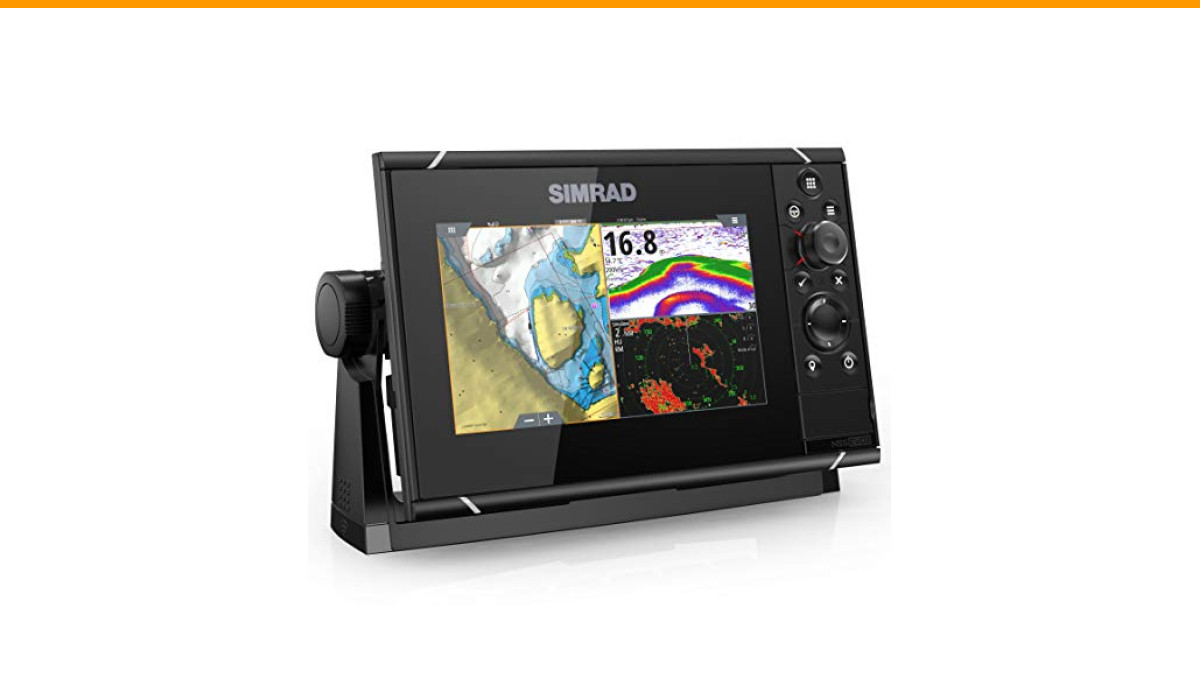
Simrad NSS evo3: 7-inch Navigation Display with GPS, SolarMAX Display and C-MAP Insight Pro Charts Installed.
- MAKE THE MOST OF YOUR BOAT: Navigate, find fish, and take total control of your on-water experience with NSS evo3.
- TOUCHSCREEN DISPLAY: With NSS evo3 switch seamlessly between intuitive touchscreen control with multi-touch gestures and a built-i…
- EASY NAVIGATION: Every NSS evo3 display is a full-featured chartplotter navigation display with a built-in GPS receiver.
If you’re still running an older version of the software, you’ll want to update before trying any of these. The good news: it’s free and takes about ten minutes. Here’s what you need to know.
Before we get into the list, let’s talk hardware. If you’re using a Simrad NSS evo3 7-inch display, you already have a solid foundation—it includes a built-in GPS, SolarMAX display, and C-MAP Insight Pro charts. The updates below work on that unit and other evo3 sizes, so you don’t need new gear to benefit.
1. Custom Sonar Views That Actually Reduce Clutter
The default sonar screen shows a lot of noise—especially in shallow water or around structure. Most people don’t know you can build a custom sonar view that filters out the junk.
Go to the Sonar page, press the menu key, and select Edit User View. From there, you can add or remove data fields, change the color palette, and adjust the gain offset. The trick is to set the surface clarity to High and the noise rejection to Off—yes, off. That sounds counterintuitive, but it often gives you a cleaner picture because the unit’s automatic noise filter sometimes hides small returns.
Another hidden gem: the Bottom Lock mode. When you’re trolling or drifting, this keeps the bottom at a fixed point on the screen, so you can see fish suspended just above it. Most people never switch from the default scroll mode, so they miss this.
Pro tip: Save your custom view as a favorite by holding the page key for two seconds. Then you can switch back and forth with one tap.
2. Free Software Updates That Add Real Features
Simrad releases software updates that add features—not just bug fixes. The v26.1 update brought improvements to the autopilot and sonar, and the free upgrades from Simrad have included things like new fish symbols and better chart rendering.
Here’s how to get them: download the update to a microSD card, insert it into the unit, and follow the on-screen prompts. The whole process takes about ten minutes. You don’t need to send the unit in or pay a dealer.
One thing people forget: after the update, you should recalibrate your touchscreen. Go to Settings > Display > Touch Calibration. It’s a small step that makes a big difference, especially if the screen feels laggy.
3. The Autopilot Integration You’ve Been Ignoring
If you have a Simrad autopilot system (like the NAC-3 or AC-12), the Evo 3 can do more than just steer. The software update added Pattern Steering modes—like zigzag and contour—that work directly from the chartplotter.
To access them, open the Autopilot page, press the menu key, and select Pattern Steering. You can choose a zigzag pattern for trolling or a contour pattern that follows a depth line. The unit calculates the turns automatically, so you don’t have to babysit the wheel.
What most people don’t realize is that you can adjust the pattern parameters live—like the distance between legs or the turn rate—while the boat is moving. That’s a huge time-saver when you’re trying to cover a specific area.
One caveat: pattern steering only works if your autopilot is connected via NMEA 2026 and has the latest firmware. Check your autopilot’s manual for the update process.
4. Overlaying Radar and Sonar Data on the Same Screen
The Evo 3 lets you combine radar and sonar data on a single screen, but most people never try it because they think it’s complicated. It’s not.
From the Home page, select Panel Layout, then choose a split screen. Pick one side for radar and the other for sonar. Then, on the radar side, use the Overlay option to add a chart or a sonar image. You can also adjust the opacity of the overlay so you don’t lose sight of the bottom.
Why bother? When you’re navigating a narrow channel, you can see the radar returns (other boats, buoys) and the bottom structure at the same time. That gives you a complete picture without switching screens.
It takes a few minutes to set up the first time, but once you’ve saved the layout, it’s one tap away.
5. The Data Bar That Most People Turn Off (But Shouldn’t)
The data bar along the top of the screen shows speed, depth, and heading—but most people either ignore it or turn it off to get more chart space. That’s a mistake.
You can customize the data bar to show exactly what you need. Press the menu key on any page, select Edit Data Bar, and you can add fields like water temperature, battery voltage, or distance to next waypoint. This is especially useful on the chart page, where you don’t want to clutter the map with text.
Here’s the part that surprises people: you can have two different data bars—one for the chart page and one for the sonar page. So you can see temperature on the sonar screen and fuel flow on the chart screen. That’s a level of customization most owners never find.
Pro tip: Put the data bar on the side instead of the top. On a 7-inch screen, that gives you more vertical space for the chart.
Comparison: NSS Evo 3 Updates vs. Older Simrad Units
| Feature | NSS Evo 3 (with latest software) | Older Simrad (e.g., NSS Evo 2) |
|---|---|---|
| Custom sonar views | Yes, with bottom lock and surface clarity | Limited, no bottom lock |
| Pattern steering | Included (zigzag, contour) | Not available |
| Data bar customization | Two separate bars, full field selection | One bar, fewer fields |
| Radar/sonar overlay | Yes, with opacity control | No overlay option |
| Free software updates | Regular releases with new features | Rare, mostly bug fixes |
That table shows the gap clearly. If you’re on an older unit, the updates might tempt you to upgrade. If you already have an Evo 3, you’re leaving features on the table if you haven’t updated.
Frequently Asked Questions
How do I update the software on my NSS Evo 3?
Download the latest software from Simrad’s website to a microSD card. Insert the card into the unit, power it on, and follow the prompts. It takes about ten minutes. Make sure the unit is connected to a stable power source—don’t let the battery die mid-update.
Will these updates work on the 7-inch version?
Yes. The features we covered are available on all NSS Evo 3 sizes, including the 7-inch model. The smaller screen means you’ll want to use the side data bar to maximize chart space, but everything else works the same.
Do I need a separate transducer for the sonar features?
The built-in echosounder works with a range of transducers, but you’ll need a compatible one for CHIRP or StructureScan. The unit itself includes the sonar hardware, so you just need to connect a transducer (sold separately). Check your transducer’s compatibility on Simrad’s site.
Can I use pattern steering without an autopilot?
No. Pattern steering requires a Simrad autopilot system connected via NMEA 2026. If you don’t have one, you can still use the sonar and chart features, but the autopilot patterns won’t show up.
Why does my screen seem dim after updating?
The update might reset your display settings. Go to Settings > Display and adjust the brightness and backlight. Also, check if the SolarMAX mode got turned off—that’s a common reset issue.
What to Do Next (and What to Avoid)
Here are the key points to remember:
- Update your software first—it’s free and unlocks most of these features.
- Create a custom sonar view with bottom lock and high surface clarity for cleaner returns.
- Use pattern steering if you have an autopilot; it saves time when trolling.
- Set up a radar/sonar overlay for narrow channels or crowded areas.
- Customize two data bars—one for chart, one for sonar—to keep your screen clean.
- Recalibrate the touchscreen after every update.
- Don’t turn off the data bar entirely; you’ll lose critical info.
Three common mistakes to avoid:
- Skipping updates—you’re missing out on free features.
- Using the default sonar view—it’s noisy, and you’ll miss fish.
- Ignoring the data bar—it’s not just for show; it saves you from switching screens.
Now go check your software version. If it’s not the latest, update it. Then try one of these features the next time you’re out. You’ll wonder how you managed without them.
